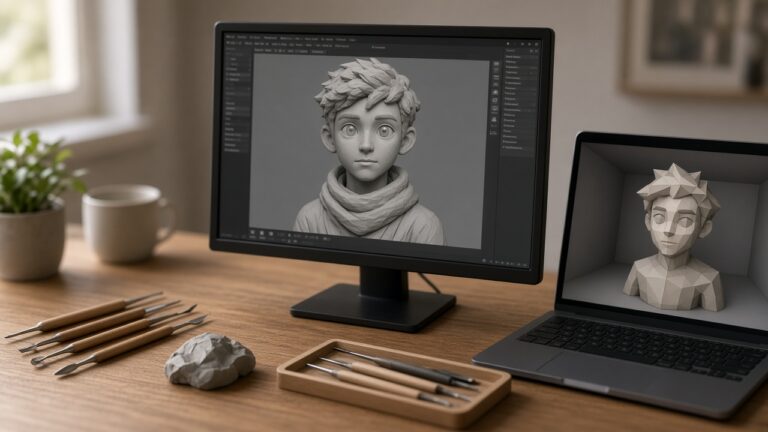
ZBrush to Unreal Engine 5 Full Pipeline
Your sculpt is done and already has a game mesh, so now you build a plain collision shape for it and get Unreal to treat that shape as collision instead of something players can see.
This is a collision-only follow-up to the ZBrush sculpting posts 132 and 160: you will not sculpt, retopologize, bake, or touch a material here, only make one simple collision shape and bring it into Unreal.
Start with what you should already have:
- A finished sculpt.
- A game mesh made from it, the lower-resolution version you actually ship.
- That game mesh already imports into Unreal and looks right.
If the last point is not true yet, fix it first. Collision built against a mesh that imports at the wrong size or facing the wrong way will be wrong too.
Why the game mesh is not your collision
Your game mesh may be light enough to render, but it is still far more detailed than physics needs. Every dent and fold becomes a surface the character can catch on.
Epic’s FBX static mesh docs describe simplified collision as important for optimizing collision detection. Their collision tutorial also shows the other half of the problem: a chair whose default collision blocks the player from sitting, because the shape did not match how the player needs to move.
So the goal is not “match the sculpt.” The goal is “match how the player moves around it.” For most props, that means a few boxes or one low convex hull.
Decide the shape on paper first
Look at your prop from the side the player will see most. Ask two questions.
Does the player only need to not walk through it? A statue, a boulder, or a crate falls in this group. One convex hull, or one or two boxes, is enough.
Does the player need to get inside part of it? An archway, a gap between legs, a seat, or a hollow log falls here. You need several separate pieces with open space between them, because a single convex shape cannot have a hole or a dent.
Sketch the pieces. Keep the count small. If you are drawing more than a handful, the prop probably needs splitting into separate meshes.
Build the collision pieces in ZBrush
You want each collision piece as its own SubTool, sitting next to the game mesh SubTool in the same ZTool.
For boxes. Maxon’s SubTool reference describes an Append button in Tool > SubTool that adds a model to the end of the list, and notes that ZBrush primitives are converted to polymeshes when appended. Append a cube primitive, then move and scale it with the Gizmo until it wraps the part it stands for.
Leave its corners square. Epic’s docs say a box collision piece must stay a regular rectangular shape. If you push vertices around, it will not work as a box.
For a low convex hull. Duplicate your game mesh SubTool and reduce it hard. Maxon’s Decimation Master plugin, in the ZPlugin palette, decimates the current SubTool. Its docs note that each SubTool needs a unique name before you pre-process, so rename the copy first. Reduce until the copy is a rough, blocky stand-in for the form.
That rough copy will still have dents. That is fine if you use the convex prefix and the import option described below, because Unreal can wrap each piece in a single convex hull.
Keep pieces from overlapping. Epic’s docs say results are best when multiple convex hulls do not intersect. Leave a small visible gap between neighboring pieces.
Do not move the game mesh. The collision only lines up if both sit exactly where they were when you built them.
Name the pieces for Unreal
Epic’s FBX static mesh docs identify collision meshes by name. The prefix tells Unreal what kind of shape the piece is, and the rest must match the render mesh name exactly.
UBX_for a box.UCX_for a convex shape.UCP_for a capsule.USP_for a sphere.
If your game mesh SubTool is named Statue_01, a single hull is UCX_Statue_01. For several pieces, add a suffix: UCX_Statue_01_00, UCX_Statue_01_01, and so on.
Epic’s page also says that in general you probably want convex pieces. Spheres are only used for some kinds of traces and not player movement, and spheres and boxes stop working if the mesh is non-uniformly scaled. If you are unsure, use UCX_ for everything, including your boxes. Epic notes that a box can also be a convex object.
Use the Rename button in Tool > SubTool to set each name.
One thing to check yourself. Maxon’s FBX ExportImport docs say texture maps are named after the SubTool, but they do not spell out that each SubTool’s name becomes the mesh name inside the FBX file. Do not assume it. The import step below tells you whether the names arrived.
Export only the mesh and its collision
Open ZPlugin > FBX ExportImport. Maxon’s docs list Selected, Visible, and All buttons for choosing which SubTools go into the file.
- Hide every SubTool except the game mesh and its collision pieces.
- Choose Visible.
- Use the same axis and other settings you used for your existing game mesh export, so everything lands in the same place it did before.
- Export to a new FBX file.
Keep it to one render mesh per file. Epic’s docs state that when you import several meshes with custom collision in one file, only the first mesh’s collision comes through.
Epic’s page also notes that its importer uses a specific FBX version, while Maxon’s plugin lets you pick from a range of older versions. Check the current docs for both before you export, and if import fails, try a different FBX version from the plugin’s selector.
Import into Unreal as collision
Import the FBX through the Content Browser as Epic’s pipeline page describes. In the import options, two settings matter here, according to Epic’s FBX import options reference:
- Auto Generate Collision builds collision for you, but Epic says it is not used when custom collision is found in the file. Your named pieces win.
- One Convex Hull per UCX forces each
UCX_piece to become a single convex hull. If it is off, Unreal may split a piece into several hulls. For your decimated stand-in, turning it on keeps one piece as one hull.
When the names match, Epic’s docs say the importer finds the collision meshes, removes them from the render mesh, and turns them into the collision model.
Confirm it worked
Open the new mesh in the Static Mesh Editor and turn on the collision display, as Epic’s pipeline page suggests. Then check three things.
- The collision pieces are not visible as geometry. If you can see gray blocks in the normal view, Unreal treated them as render mesh. The names did not match, or the SubTool names did not carry into the FBX.
- The collision sits where you expect. It should wrap the prop, not float beside it.
- A character behaves correctly. Place the mesh in a test level and walk into it. Walk through any gap you meant to leave open.
If the names did not come through
Do not fight it inside ZBrush for long. You have two fallbacks.
- Open the FBX in another 3D tool, check the object names, rename them to the pattern above, and export again. Post 192 walks through this same naming from Blender.
- Skip custom collision for this prop. Epic’s collision tutorial shows the Static Mesh Editor’s Collision menu, with Add Box Simplified Collision and Duplicate Selected Collision. You can place and scale a few boxes by hand around the mesh you already imported.
Write it down
Once one prop works, note the steps that mattered: the name pattern, which SubTools were visible, the export settings, and the import options. Menu names in ZBrush and Unreal move between versions, so check them against current Maxon and Epic docs each time you upgrade. Your next prop will take a fraction of the time.