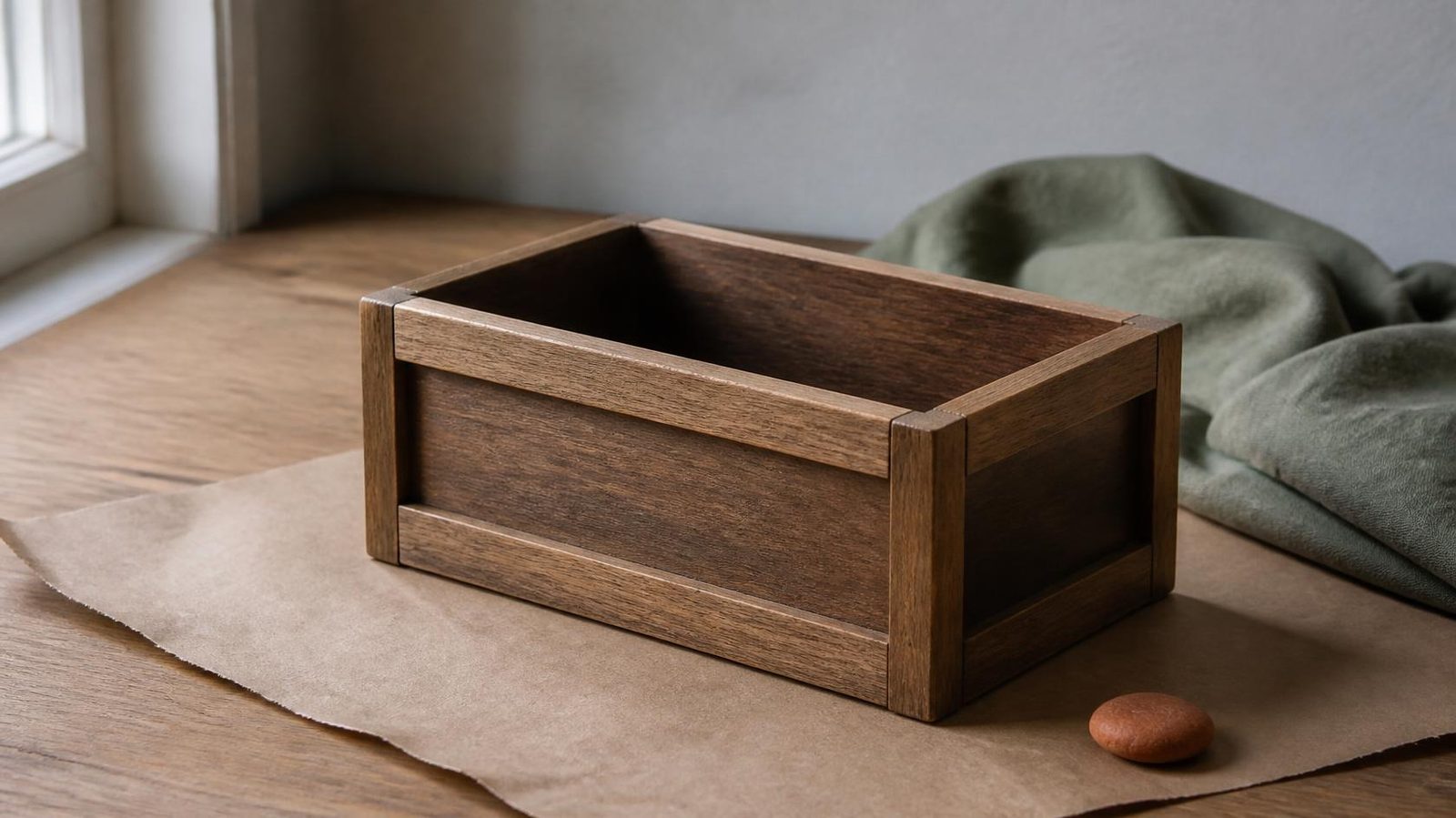
Turn Blender’s default cube into one finished wooden crate, export it, and prove the file opens cleanly before you model anything else.
This is the first-sitting, hands-on slice: one crate built keystroke by keystroke, with no style theory, no budgets, no texturing, and no engine import. You will finish one object, save it, export it, and reopen the export in a fresh Blender file. That loop is the whole lesson.
Blender moves menus and renames options between releases. Every tool named here appears in the current Blender manual, but if your screen looks different, search the manual for the tool name rather than hunting through menus at random.
Step 1: Save before you touch anything
Open Blender and start a new General file. You get a camera, a light, and a gray cube in the middle of the grid.
Save right away. Name the file crate.blend and put it in a folder you will find tomorrow. From here on, save every few minutes. Blender is stable, but your patience is not, and an undo history is not a backup.
Step 2: Learn to look around
You cannot model what you cannot see, so spend two minutes here.
With a three-button mouse, hold the middle button and drag to orbit. Scroll to zoom. Hold Shift with the middle button to pan. The number pad gives you front, side, and top views, and the small axis gizmo in the corner of the viewport does the same thing if you click its colored balls.
On a laptop without a middle button, look up the Navigation page and the input preferences in the manual. Blender has an option to emulate a three-button mouse.
Orbit all the way around the cube once. Then come back to a three-quarter view where you can see the top and two sides.
Step 3: Know your two modes
Blender has several modes, but you only need two today.
Object Mode is where you move, rotate, and scale whole objects. Edit Mode is where you change the mesh itself: its vertices, edges, and faces. Press Tab with the cube selected to switch between them.
In Edit Mode, press 1, 2, or 3 on the top row of the keyboard to switch between vertex, edge, and face selection. You will spend most of this build in face mode, so press 3 now.
If a key does nothing, check that your mouse pointer is over the 3D viewport. Blender sends shortcuts to whatever area sits under the cursor.
Step 4: Sit the crate on the floor
The default cube is centered on the world origin, so half of it hangs below the grid. A crate should rest on the ground, with its pivot at the bottom center.
In Edit Mode, press A to select everything. Press G, then Z, then type 1 and press Enter. The whole mesh moves up one unit, and its bottom face now sits on the grid.
Because you moved the mesh in Edit Mode, the object’s origin stayed at the world center. That puts the pivot exactly where a crate wants it: at its base. Press Tab to go back to Object Mode and look. The small orange dot should sit on the floor under the crate.
Step 5: Cut the panels
A plain cube reads as a box. A cube with a frame around each side reads as a crate.
Go back into Edit Mode, stay in face mode, and press A to select all six faces. Press I to run Inset Faces. Move the mouse to set the border width, then click to confirm.
At first the inset may treat all six faces as one region. Look for the operator panel that appears in the lower-left corner of the viewport after the tool runs. Turn on the Individual option so each face gets its own border. Set the thickness until the frame looks like sturdy wooden boards, not thin trim.
In that same panel, find the Depth value and push it slightly negative. Each center panel sinks into the frame. Keep it shallow. You want a shadow line, not a hole.
If the panel vanished because you clicked something else, press Ctrl+Z to undo and run the inset again. The panel only stays open for the last action.
Step 6: Shade it flat and check the normals
Press Tab to return to Object Mode. Open the Object menu and choose Shade Flat. Every face now shows one clean tone, which suits a hard-edged prop.
Next, check which way the faces point. Open the viewport overlays dropdown and turn on Face Orientation. The manual describes it as highlighting the back side of faces in red. Orbit around the crate. If any outside face shows red, it is pointing inward.
To fix it, go into Edit Mode, press A, and use Recalculate Outside. Its shortcut is Shift+N, and it also lives in the Mesh menu under Normals. Turn the overlay off when the crate is clean.
Step 7: Give it two colors
Select the crate in Object Mode and open the Material Properties tab in the Properties editor. Add a new material, name it crate_frame, and set its base color to a warm brown.
Now go into Edit Mode and select only the six sunken center panels. Clicking each one while holding Shift works fine. Back in the material tab, add a second material slot, create a new material called crate_panel, pick a slightly darker brown, and press Assign.
Switch the viewport to Material Preview shading so you can see both colors. Two tones are enough for a first prop. Leave textures and UV unwrapping for another day.
Step 8: Clean up before export
Return to Object Mode. Press N to open the Sidebar and look at the Item tab. Location should read zero, rotation should read zero, and scale should read one on every axis.
You built everything in Edit Mode, so those values should already be clean. If one of them is not, press Ctrl+A and apply all transforms.
Now name the object. Double-click Cube in the Outliner and rename it prop_crate. Save the file.
Step 9: Export only the crate
Click the crate so it is the only thing selected. The camera and the light do not belong in your export.
Open File, then Export, then glTF 2.0. In the exporter options, find the Include section and turn on Selected Objects. Pick the single-file binary format, which writes a .glb file. Name it prop_crate.glb and export it next to your .blend file.
If your project needs FBX instead, Blender exports that too. Check the current manual page for the format you choose, because exporter options change between versions.
Step 10: Prove the file works
This is the step most beginners skip, and it is the one that tells you whether you are finished.
Save crate.blend one more time. Then start a new General file, delete the default cube, and use File, then Import, then glTF 2.0 to bring in prop_crate.glb.
Check four things:
- The crate sits on the grid, not halfway through it.
- It is the same size as the original.
- Both browns came through.
- Face Orientation shows no red on the outside.
If anything is wrong, fix it in crate.blend, export again, and repeat the check. Never patch the imported copy. The .blend file is your source, and the export is something you can always regenerate.
Stop here
You turned a cube into a crate, set its pivot, checked its normals, gave it materials, named it, exported it, and confirmed the export. That is a complete prop.
Resist the urge to add nails, straps, or a lid right now. Make a second crate from scratch tomorrow, without reading this page. When you can do it from memory, you are ready for a harder shape.