How to Make a 2D Platformer in Godot 4.x
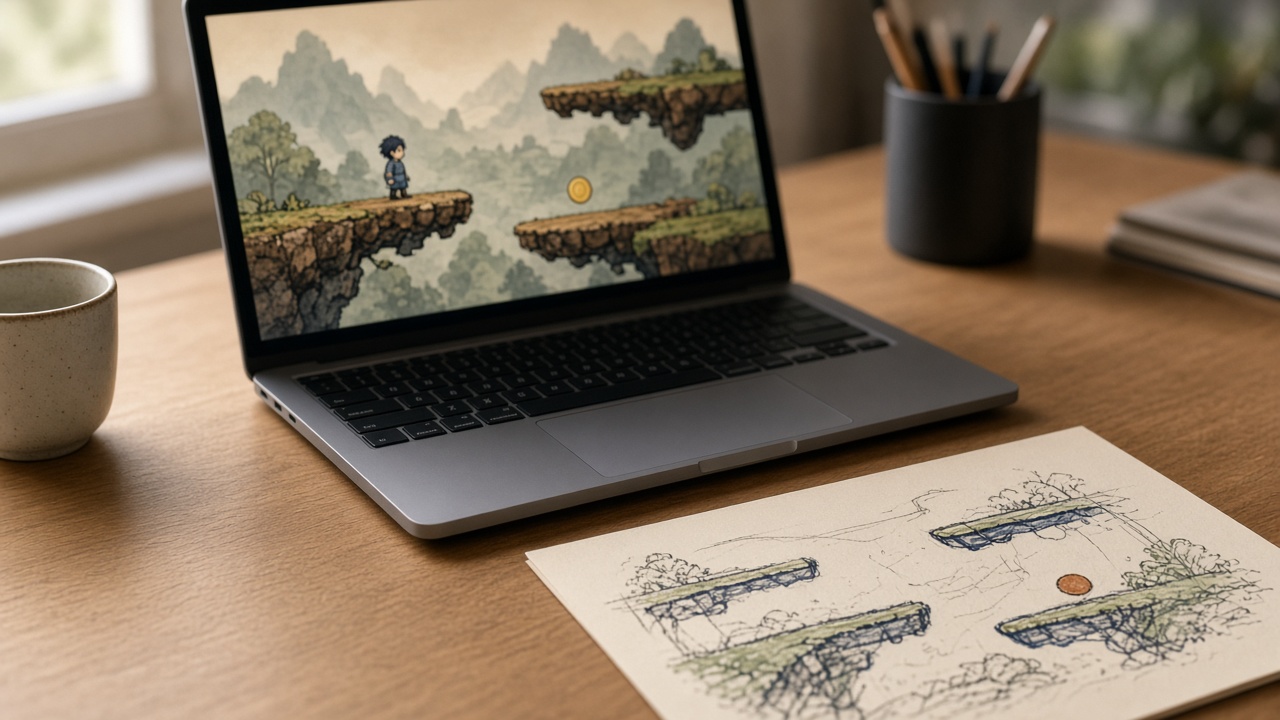
A 2D platformer is a good first Godot project because the rules are visible: run, jump, land, do not fall in the hole. This tutorial builds one room with a character, a tile floor, a hazard, and a goal. That is a playable slice. It is not a commercial platformer, and it does not include menus, save files, or a dozen levels.
Godot 4 changed nodes and tilemap tools relative to Godot 3, and smaller renames still happen inside 4.x. If a node name does not match your editor, search the current Godot 4 manual. Prefer the manual over a Godot 3 video.
Set up the project around motion
Create a new project and choose the renderer your docs recommend for 2D. For a flat sprite game, the lighter 2D setup is enough. Set a base window size you can actually see on your monitor, and turn on pixel snap or texture filtering only if you know you want a pixel-art look. Defaults are fine for a first room.
Open Project Settings and define input actions instead of hard-coding keys all over your scripts. Create move_left, move_right, and jump. Assign the keys or gamepad buttons you want. You can change the keys later without editing code.
Also note gravity. Godot’s project settings include a default 2D gravity. CharacterBody2D can read it with get_gravity() in current Godot 4 releases. If that method is missing, your version is older than you think, or you are not on a CharacterBody2D. Check the class reference.
Create a folder layout you will not regret: scenes/, scripts/, and art/. Even a one-room prototype is easier to reopen when the player is not saved on the desktop of the project root.
Build the player as its own scene
Add a scene with a CharacterBody2D as the root. Name it Player. Add a CollisionShape2D and a shape that roughly matches the body, usually a capsule or rectangle slightly smaller than the sprite so the character does not snag on tile corners. Add a Sprite2D or AnimatedSprite2D for the drawing. The sprite does not collide. The collision shape does.
Put a Camera2D on the player for now, and enable position smoothing if your version offers it. A camera that lerps a little feels calmer than one glued to every sub-pixel. You can move the camera to a level scene later. Getting it on the player first means you can test jumps immediately.
Save the scene as scenes/player.tscn.
Attach a script. A minimal Godot 4 body looks like this:
extends CharacterBody2D

@export var speed := 220.0
@export var jump_velocity := -380.0
@export var coyote_time := 0.12

var coyote_left := 0.0

func _physics_process(delta: float) -> void:
    var direction := Input.get_axis("move_left", "move_right")
    velocity.x = direction * speed

    if is_on_floor():
        coyote_left = coyote_time
    else:
        coyote_left -= delta
        velocity += get_gravity() * delta

    if Input.is_action_just_pressed("jump") and coyote_left > 0.0:
        velocity.y = jump_velocity
        coyote_left = 0.0

    move_and_slide()
Up is negative Y in Godot 2D, so jump velocity is negative. move_and_slide() uses the velocity already stored on the body. Do not pass a vector to it. That was a Godot 3 habit.
Coyote time is the short grace period after walking off a ledge where a jump still counts. It makes platforms feel fair. Tune @export values from the inspector while the game runs, if your version supports live property edits, and write down the numbers that feel right. There is no correct jump speed outside your room scale and your taste.
If the body falls through the floor, the floor has no collision, or the player’s collision layer does not overlap the floor’s mask. Set those next, after a floor exists.
Paint one room, not a world
Instance the player into a new level scene with a Node2D root. Then add the tilemap node your Godot 4 version recommends. Recent 4.x releases use TileMapLayer for new work. Earlier 4.x releases use TileMap. The 2D tiles page in the manual names the node you should create. Follow that, and ignore tutorials that mix the two without saying so.
Make a tileset from a few rectangles you draw yourself, or from any texture you have the rights to use. Give the solid tiles a physics layer so they collide. Paint a floor, a couple of platforms, and one gap. Leave the geometry readable. A first room with three jumps teaches more than a maze.
Put the player on a collision layer separate from the world, and set masks so the player scans for the world. The layer checkboxes move around the inspector between versions. The class docs for CollisionObject2D explain masks if the icons confuse you.
Add an Area2D as a pit or spikes, on its own layer, with a signal connected to the player or to the level. On body entered, if the body is the player, reload the scene with get_tree().reload_current_scene(). That is a crude respawn and a fine one for this slice. Put the player’s start position where a reload looks fair, which is usually the beginning of the room.
Add a second Area2D as the goal. When the player overlaps it, print a message or load a second scene if you made one. Do not build the second scene until the first room feels good to move in.
Fix the feel before you add features
Play the room from the editor. Watch for these specific problems:
The character sticks on tile edges. Shrink the collision shape slightly, or bevel the mental corner by separating stacked tiles so seams are flush. Also check that you are not using a rectangle that is wider than the sprite.
Jumps feel sluggish or floaty. Gravity and jump velocity trade off. Higher gravity and a stronger jump feels snappier. Change one export at a time.
The jump only works if the button is pressed on the exact landing frame. You already added coyote time. If it still feels late, also store a short jump-buffer timer: if the player presses jump slightly before landing, remember that press for a tenth of a second and consume it on landing. Implement that only after coyote time makes sense to you.
The camera shows empty void the whole time. Limit the camera with Godot’s camera limit properties, or move the camera to the level and follow the player with a simpler smoothing script. Limits are enough for one room.
Animation can wait. A Sprite2D that flips flip_h when velocity.x changes sign already reads as facing. Add an AnimationPlayer or AnimatedSprite2D after the jump lands where you expect. Art direction on a broken jump wastes the evening.
What this slice deliberately skips
Double jumps, moving platforms, enemies, coins, and a title screen are all extra scenes on top of this one. Add an enemy only as something that patrols between two points and hurts the player through the same reload rule as the pit. If you add it before the jump feels stable, you will tune the wrong thing.
Tilemap collision in Godot is precise and also picky. If a one-way platform is tempting, read the current one-way collision docs rather than stacking hacks. One-way floors are a common place for tutorials to go stale.
When you can run from the left of the room, make three intentional jumps, fall in the pit and come back, and touch the goal, stop. Save the project. Duplicate the level scene before you experiment further.
That duplicate is how a one-room prototype grows into a short game without you destroying the only copy that worked. A store page, a soundtrack, and ten more levels are a later plan. They are not required to call this tutorial finished, and finishing them is not something one evening of setup will do.